Have you ever been in a situation where you want to watch a video but your hands are filled with work? Well, for this, you have YouTube’s picture-in-picture (PIP) option available. YouTube picture in picture not working may lead to frustration, particularly if you want to make the most of it. If you are using a mobile device, you can float it over other apps with a movable and small window showing the YouTube videos.
YouTube’s PiP (Picture in Picture) was designed for multitaskers as a game-changing option. It lets you browse video whether you are working, browsing, or texting. The best part is that you can reposition the window according to your requirements, within the mobile phone. The option is available in both iOS and Android, converting your phone into a powerful multitasking machine. But if you have encountered the issue that YouTube picture in picture not working, it can interrupt this coherent experience.
The purpose of YouTube PiP is to make sure you do not miss out on a moment. In this blog, we will provide you with information about how to fix the YouTube Pip not working issue. These are applicable to both iOS and Android.
How to Fix YouTube Picture-in-Picture (PiP) Not Working:
-
Enabling the YouTube Pip Mode:
Begin by playing any YouTube video and then tapping to the the home button or swipe up to exit the app. But before you do that, make sure Picture-in-Picture (PiP) mode is turned on in your YouTube settings. Sometimes, things like app updates, clearing the cache, or system tweaks can turn it off without you even realizing it.
Usually, once you have cleared your app data, updated your YouTube app, or restarted your phone, you may see all of a sudden that YouTube picture in picture not working. This is a common issue, such changes may disable PiP temporarily, even though it was previously working perfectly.
Ways to Enable YouTube PiP Mode:
If you are facing the issue of YouTube picture in picture not working, these are some simple steps to get started. First, open the YouTube app on your iOS or Android device, and then go to the top right corner to your profile icon. Once done, go to the settings menu and then choose the option of Video and Audio Preferences. Find and tap on Playback once you are inside that menu. Just toggle on the Picture-in-Picture (PiP) option. To test the PiP, first play a random video and then go to the home screen. If everything is perfectly set up, the video will continue to play in a small window, which you can move according to your desire. This way, you do not have to face the hassle while working with other apps at the same time.
-
Check Updates on YouTube App:
Do you want to enable YouTube’s Picture in Picture (PIP) mode? It is a very straightforward way to activate it. First, go to the YouTube app and click on profile picture. Once you have reached there, then go to Settings > General, and ensure turning on Picture-in-Picture (PiP).
Regardless of what operating system or device you are using. First, you have to double-check and dive into your YouTube app, fully updating it via the App Store or Play Store. This is because an outdated version of YouTube may have trouble with PiP.
If PiP still isn’t working, the culprit might be your phone settings. On Android, head to your device’s Settings, search for “Picture-in-Picture,” go to Special App Access, and ensure YouTube is allowed. On iOS, navigate to Settings > General > Picture-in-Picture, and enable the “Start PiP Automatically” option.
Still stuck? It might be your VPN. A lot of users have mentioned that connecting to certain regions, especially in Europe, can disable PiP due to restrictions. If you’re in the U.S., try disconnecting your VPN. If you’re outside the U.S. and don’t have YouTube Premium, connecting to a U.S.-based VPN server might just do the trick.
If none of that helps, try clearing the cache. If you’re using an Android device, just head over to Settings, tap on Apps, find YouTube, then go to Storage and hit Clear Cache—super simple! If you’re on an iPhone, you can go into your storage settings, offload the YouTube app, and then reinstall it. It’s a quick way to refresh the app without losing your data.
The last step to ensure fixing YouTube PiP that stopped working is to restart your device. This step follows only once you have cleared cache in your YouTube app.
Give these fixes a shot—chances are, one of them will have you watching YouTube in a floating window in no time! This is how you can fix YouTube PiP; however, if you consider using PiP on your smartphone, while watching any podcast or listening to music and play with background, during other apps performing, is then a best move.
How to Enable PiP on YouTube?
It is very easy to enable PiP, however, you should ensure that you do a few settings first. These are as follows:
-
Updating the YouTube App:
Before planning to enable the YouTube app, first ensure that your YouTube app is of the latest version. Select for iOS updates via the App Store or Android via the Google Play Store. One of the main reasons behind YouTube picture in picture not working is due to an outdated app.
Once you have updated the app, launch the YouTube app and go to the top-right corner and tap on your profile picture. Then go to your account settings.
Choose “Settings” from the menu, then go to “General”. A few versions of the app may include “Video and Audio Preferences” or “Playback”. But you do not have to worry, you are going towards the same place in any case.
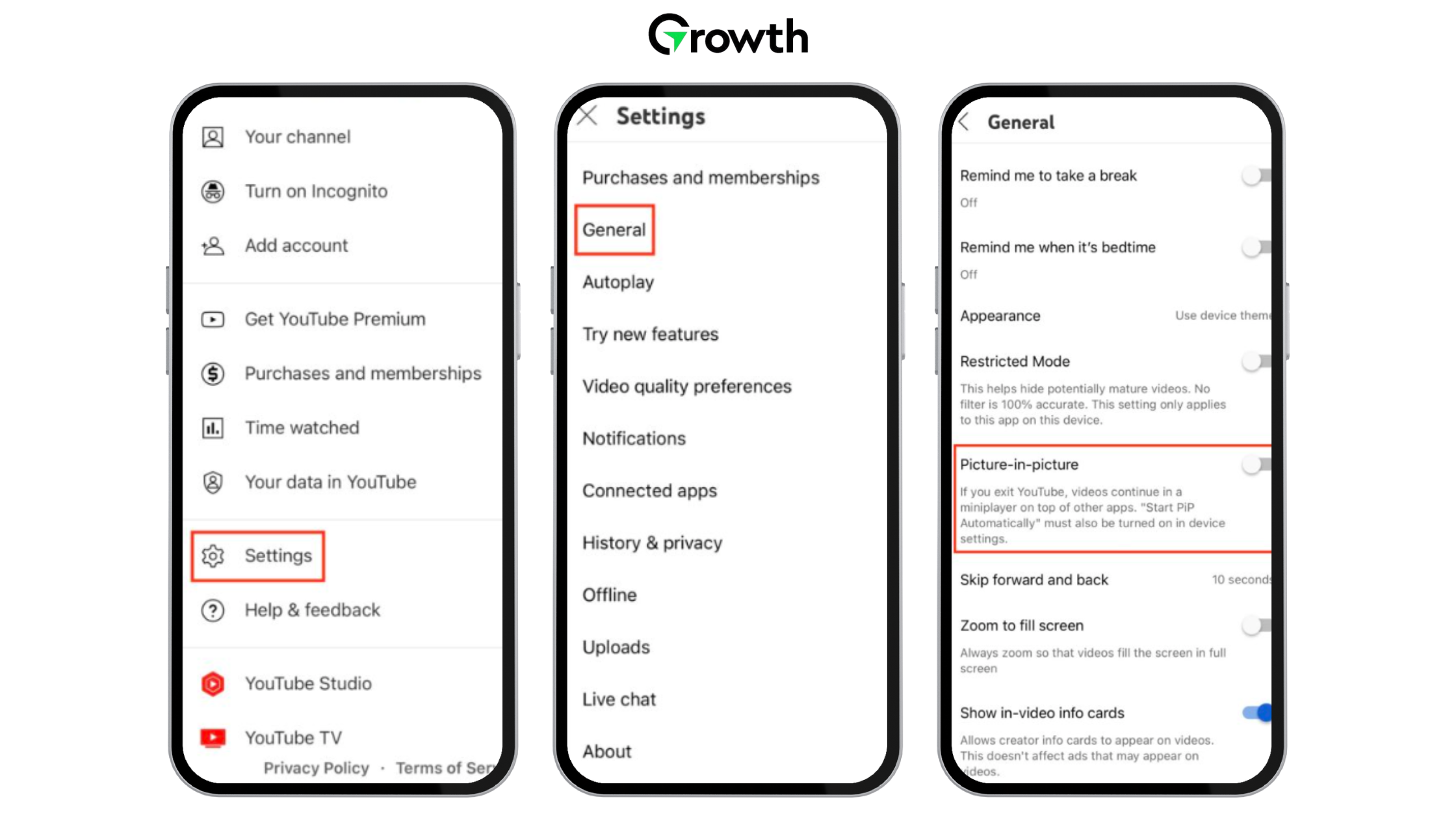
View the option of “Picture-in-Picture” and toggle it on. You may see it under a submenu, for e.g., “Playback”. Upon enabling it, you are good to go.
Just choose the video you would like to watch, start playing it, and then simply close the YouTube app—either by swiping up or tapping the home button. That’s it! If everything works smoothly, the video should compress into the PiP window, which you can move ahead.
Note: Despite all YouTube users can use PiP, however, there are a few qualifications. In some regions, users may access the PiP via YouTube Premium. If the YouTube picture in picture not working into your region, try to enable PiP. Below are some of the troubleshooting ways to see whether if it works or not.
Steps to overcome YouTube picture in picture not working?
So, by now, you might have encountered the issue of YouTube picture-in-picture not working. Maybe the video may stop when the PiP window does not appear or when you leave the YouTube app. There are several fixes to overcome this issue:
-
Enabling YouTube Permission “Appear on Top”:
The feature of “Appear on Top” is very important, since it allows the YouTube app to float over other apps on your phone. It is ideal for the mode of YouTube Picture-in-Picture (PiP). This way, you can watch videos while multitasking. For turning it on, just go to settings on your phone, find YouTube in the list while tapping on Apps. Keep on scrolling until you find Appear on Top, and ensure the toggle. This is how you are ready to go with the magic of PiP.
-
Disabling or Changing VPN Region:
Reason for its importance: On some occasions, the reason behind YouTube picture in picture not working is due to the restrictions on VPNs restricting PiP features, access issues because of app conflicts, or regional restrictions.
Steps:
Try switching the region of your VPN supporting the YouTube feature of Picture-in-Picture (PiP), or turn the entire thing off altogether. Sometimes, PiP doesn’t work because the VPN is set to a country where it’s not available. A quick change might be all you need to get it working smoothly!
Once you have done retrying, give Picture-in-Picture (PiP) mode another try. In a few countries, you may not be able to access YouTube Pip for free. Hence, this is the reason why the YouTube picture in picture not working for them. However, to overcome this issue, they have no other option than to choose YouTube Premium. But a better way to access YouTube PiP for free is by using a VPN.
-
Enabling YouTube PiP from Android Settings:
Reason for its importance:
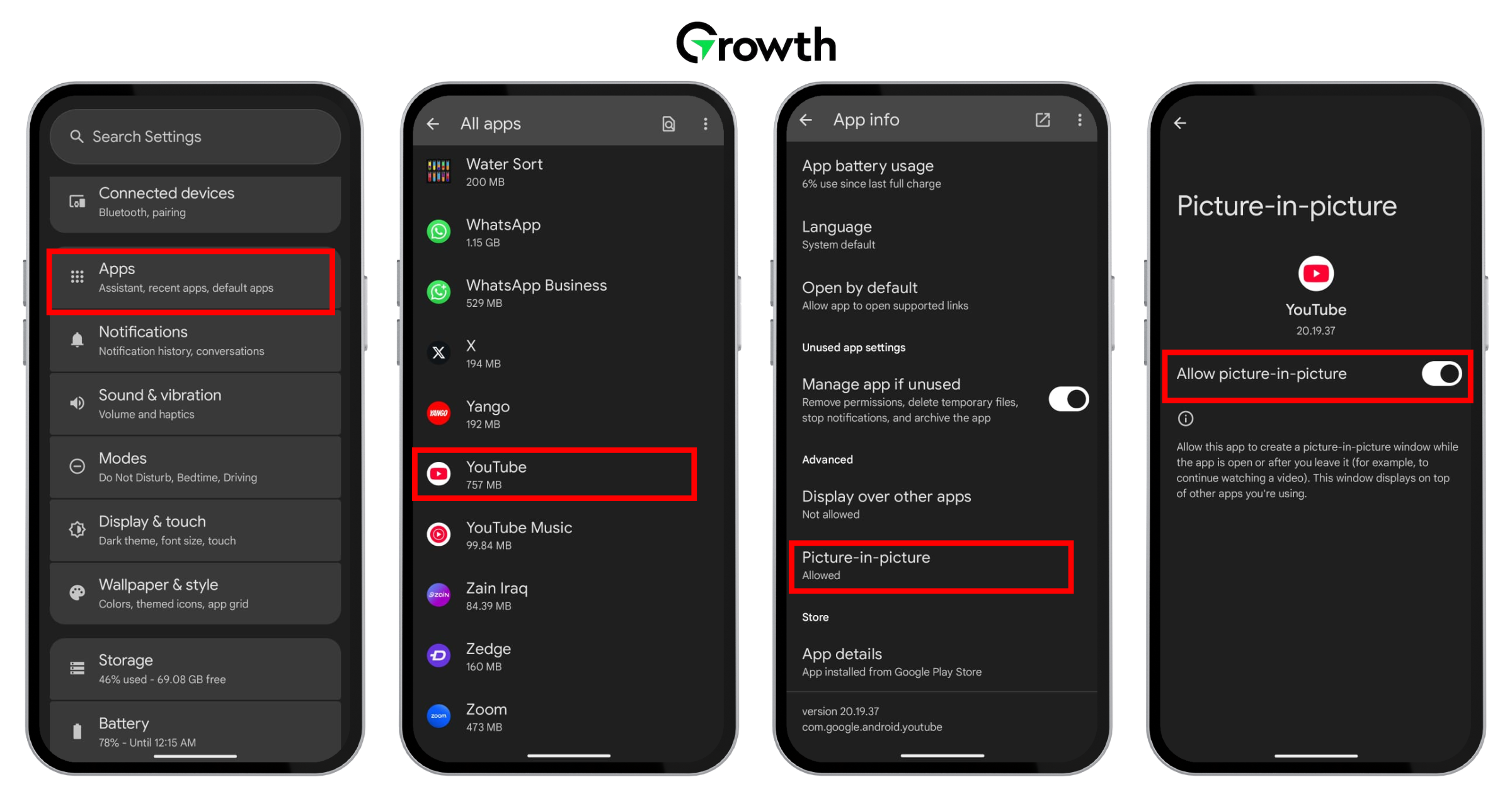
Make sure your device settings allow YouTube’s Picture-in-Picture (PiP) mode—it’s a quick check that can save you a lot of hassle. Just head over to Settings > Apps, find and select YouTube, then tap on Picture-in-Picture and switch the “Allowed” toggle on. While you’re at it, it’s a good idea to double-check other apps that might be clashing with PiP—better safe than sorry!
-
From YouTube App Enable PiP Directly:
Reason for its importance:
On a few occassions, the settings of your YouTube app manage PiP (Picture in Picture) mode separately.
Sometimes, your YouTube app settings manage Picture-in-Picture (PiP) mode separately from your phone’s system settings, so even if PiP is turned on in your phone, it might still be off in the app. To make sure it’s enabled, just open the YouTube app and tap your profile picture. Then head to Settings > Video and Audio Preferences, tap Playback, and switch on Picture-in-Picture. That should do the trick!
The Power of YouTube Picture-in-Picture:
YouTube’s Picture-in-Picture mode (PiP) is similar to having a personal assistant that never lets you get bored with the tasks on your phone. While focusing on work on your mobile, you can watch a tech tutorial or a video on how to do burpees. But if you discover that YouTube picture in picture not working, then tweaking some settings within your iOS or Android mobile will not harm your cause.
But the catch here is that YouTube PiP is not forever focused on plug-and-play. Some of the things that may hinder it include device settings, regional constraints, or glitches in the app. And in such a scenario, you may encounter an interruption that may put a break on your multitasking plans. However, you do not have to be worried since there are many types of fixes ranging from basic to advanced ones.
Functionality of YouTube Pip:
It is important to know about the functionality of YouTube PiP in detail. Even though you can benefit from this user-friendly feature, there are some crucial technical things to understand. For example, several users report issues such as YouTube picture in picture not working, which might lead you to frustration.. When you are browsing videos on YouTube and tap the swipe up or home button to exit, PiP mode should activate if it’s enabled on your phone. Rather than halting the playback, the video minimizes into a small floating window, allowing you to continue watching while working with other apps.
It is important to know about the functionality of YouTube PiP in detail. Even though you can benefit from this user-friendly feature but there are some crucial technical things to understand. When you are browsing videos on YouTube, and tap the swipe up or home button to exit. Here, if you have PiP mode activated in your phone, it kicks in. Rather than halting the playback, the video minimizes in a small floating window. This allows you a continue watching while you are working with other apps.
Key Functions:
- Mobility – while working anywhere on your mobile screen, you can reposition the floating window.
- Resizing – you can adjust the size of the window on a few devices by punching in or out.
Playback controls – to access options to skip, pause, or play, depending on your app’s version.
This feature is well-matched with iOS (version 14 and higher) and Android (version 8.0 and above), even if availability may vary. There are also regional restrictions that come into play for your access; it may either be your current settings within the device or your YouTube Premium subscription. For instance, typically, a US Android user enjoys PiP with several videos for free. On the contrary, people in other countries subscribing to premium particularly for those including copyrighted music.
Also, the performance of YouTube PiP varies from one platform to another. While you may witness a more sophisticated experience in iOS, in Android, you can gain more control based on the settings within the app.
Reasons to Love PiP:
So, what is the reason behind caring about Pip? Think of a scenario, you are immersed deeply in a 20-minute video revealing the secrets to baking the best sourdough loaf. You have your hands full with flour and have placed your phone on the counter. All of a sudden, you get a text from your roommate who asks whether you need anything from the store. If you do not have a Pip, before opening Messenger, first you have to pause the video and wipe your hands, hoping you do not lose your place.
On the other hand, all you need to do is swipe out of YouTube, letting the video shrink to a corner. While you text back, you are still watching the baker kneading the dough, “Grab some butter”. Multitasking is game-changing. Here is why:
Advantages of YouTube PiP:
Here are some of the advantages of YouTube PiP to consider before moving ahead with the fixes. Some of the key advantages are as follows:
While following a guitar lesson or typing out the grocery list, you can watch the recipe video. Without completely occupying the entire screen, PiP keeps the video in sight.
While watching, you do not have to stay on the YouTube app all the time. It is similar to a mini TV following you throughout.
It is least distracting to adjust the PiP window. It is similar to sticking a Post-it note, something that you need exactly.
- Sort of a background playback:
Even though it is not an actual background play (which is a Premium feature), PiP ensures to keep running the video keeps running while you can use other apps. This is as close as you can get, for the most part. Now let the PiP function for you. If you are setting up for the first time or are already enabling you to act up, here are some of the ways to troubleshoot every possible issue at every step. Some of the advantages of using PiP are as follows:
With YouTube PiP, you can watch the video while carrying out other activities on your phone. These include scrolling social media, browsing the web, or check your calendar. At the same time, you can enjoy YouTube video without interruption.
While watching the video on YouTube, you do not have to remain glued to the app. Without missing a beat, PiP frees you up while using your phone.
You do not have to let the little video window get stuck at one place. You can drag it as per your desire, ensuring where it is less obtrusive. It is much easier and similar to rearranging your furniture.
-
Complete Steps for Fixing PiP Issues:
Summary of fixes:
- Ensure “Appear on Top” permission is enabled.
- Check Android settings for PiP permissions.
- Configure PiP settings within the YouTube app.
- Disable VPN or change its region if necessary.
- Ensure no screen overlay conflicts.
FAQs
1. What is YouTube Picture-in-Picture?
YouTube Picture-in-Picture, also called PiP, is a feature that lets a YouTube video continue playing in a small floating window while you use other apps on your phone. You can move the mini player around the screen, pause the video, or close it without staying inside the YouTube app.
2. Why is YouTube PiP not working?
YouTube PiP may not work if the feature is turned off in the YouTube app, disabled in your phone settings, unavailable in your region, blocked for certain content, affected by a VPN, or limited because you do not have YouTube Premium. An outdated app, cache issue, or phone glitch can also stop PiP from working.
3. How do you enable YouTube PiP on Android?
To enable YouTube PiP on Android, open your phone settings, go to Apps, select YouTube, open Picture-in-Picture, and allow it. Then open the YouTube app, go to Settings, tap General, and turn on Picture-in-Picture. After that, play a video and exit the app to test whether the floating player appears.
4. How do you enable YouTube PiP on iPhone?
To enable YouTube PiP on iPhone, go to iPhone Settings, open General, tap Picture in Picture, and turn on Start PiP Automatically. Then open the YouTube app, go to Settings, tap General, and turn on Picture-in-Picture if the option appears. YouTube notes that iPhone users may need iOS 15 or later and YouTube Premium depending on region and content.
5. Does YouTube PiP require YouTube Premium?
YouTube PiP may require YouTube Premium depending on your location and the type of content you are watching. YouTube says users outside the United States generally need YouTube Premium to use PiP with YouTube content. In the United States, some non-Premium users may use PiP, but certain content, such as music videos, may not support it.
6. Can a VPN stop YouTube PiP from working?
Yes, a VPN can sometimes stop YouTube PiP from working because YouTube features can vary by region. If your VPN is connected to a country where PiP is restricted or requires Premium, the feature may disappear or stop working. Turning off the VPN or changing the server location may help.
7. How can you fix YouTube PiP if it suddenly stops working?
You can fix YouTube PiP by updating the YouTube app, checking PiP settings in both YouTube and phone settings, clearing the YouTube cache, restarting your device, disabling VPN, checking your Premium status, and confirming that the video type supports PiP. On Android, also make sure YouTube is allowed to appear over other apps.
8. Why does YouTube PiP work for some videos but not others?
YouTube PiP can work for some videos and not others because availability may depend on content type, region, account status, and YouTube Premium access. Music videos, copyrighted content, or certain restricted videos may not support PiP for non-Premium users, even if regular videos work normally.